

Quick guide
- Open Google Forms and create a blank form.
- Give your quiz a title and go to Settings to enable Make this a quiz.
- Open Questions and add your quiz questions and answer options.
- Click Answer key for each question to select the correct answers and assign points.
- Under Settings, choose when to release grades and what respondents can see.
- Click Publish, configure access permissions, and share the quiz link.
- Open Responses to review submissions, grade answers, and release scores.
If you’re an educator who has never used Google Forms to create quizzes, assign points to questions, add feedback for students, and send them their quiz scores, all without needing any add-ons, this article is for you. Keep reading for detailed, step-by-step instructions on how to create a quiz in Google Forms, along with how to configure, publish, test, and grade it. We’ll also introduce you to a more advanced form builder that can take your quizzes to the next level: Jotform.
1. Start a new quiz in Google Forms
There is no special Google Forms quiz maker; you’re essentially just creating a form. But even if you have some basic knowledge of how to use Google Forms, creating a quiz is a little more complex. Unlike a form, a quiz has an answer key with correct answers. You can assign points to each question, and Google Forms can automatically grade the answers users provide.
Follow these instructions to create a self-grading quiz in Google Forms:
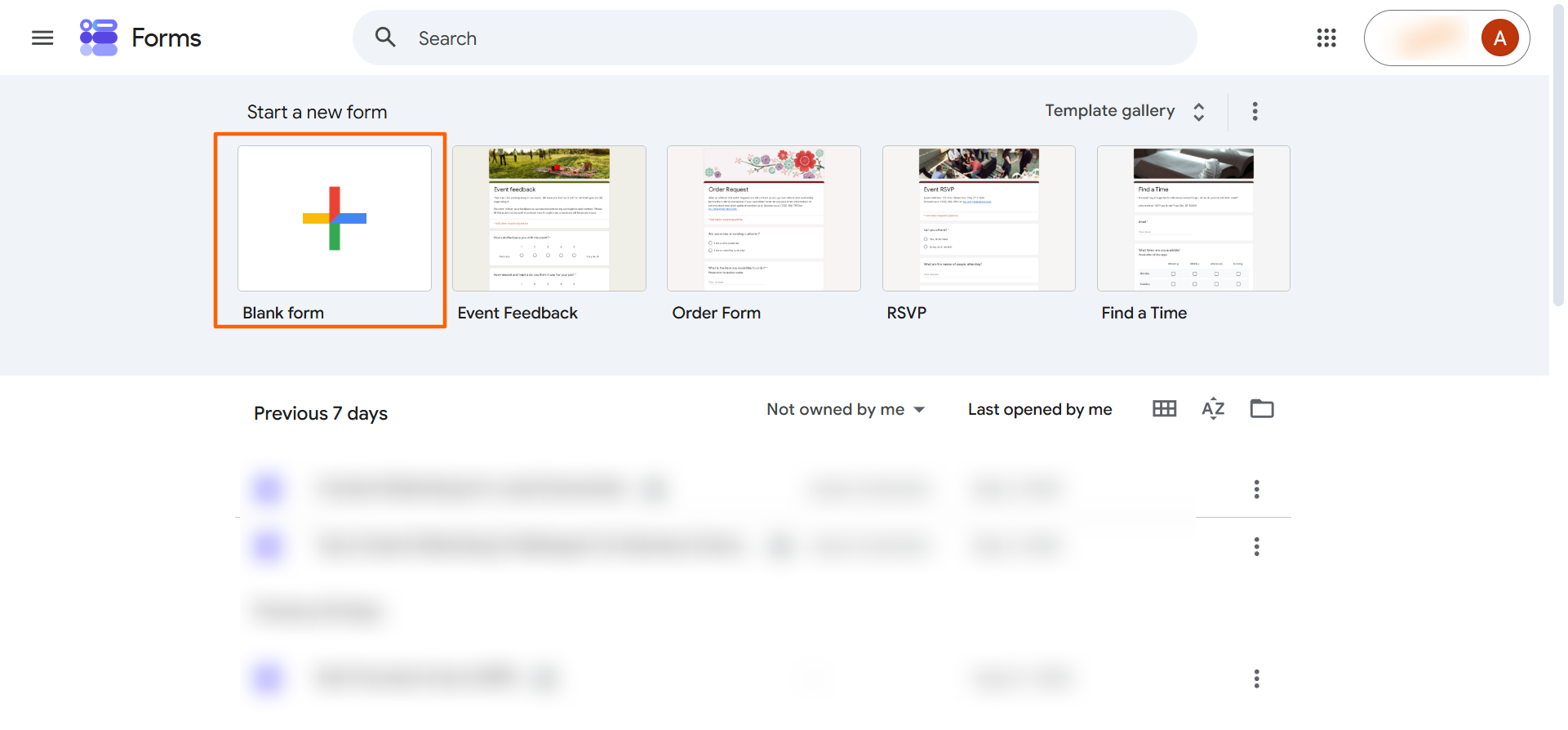
- Open Google Forms.
- Click Blank Form. Google Forms will open a new form.
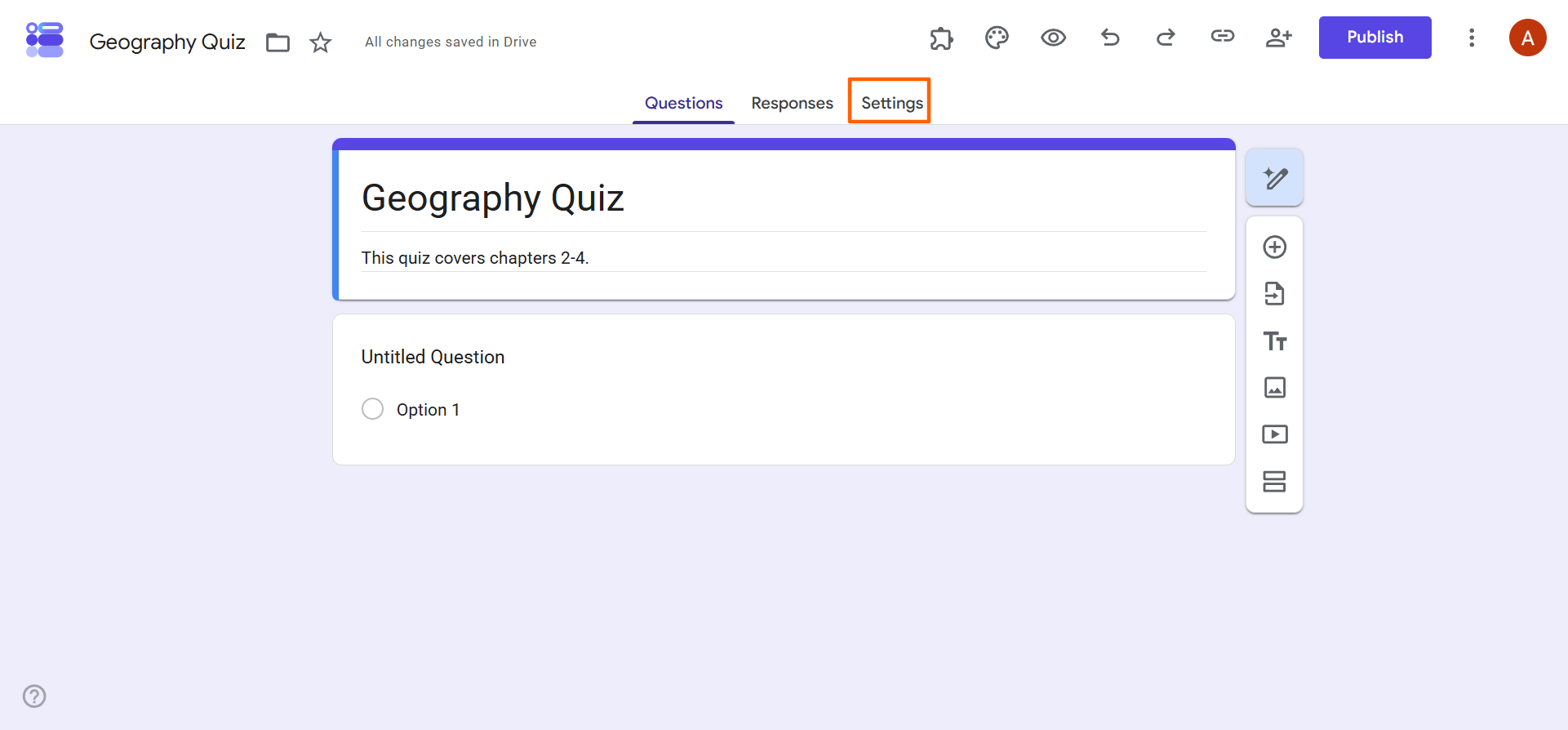
- Provide a title and description for your quiz.
- Click Settings.
- Toggle on Make This a Quiz.
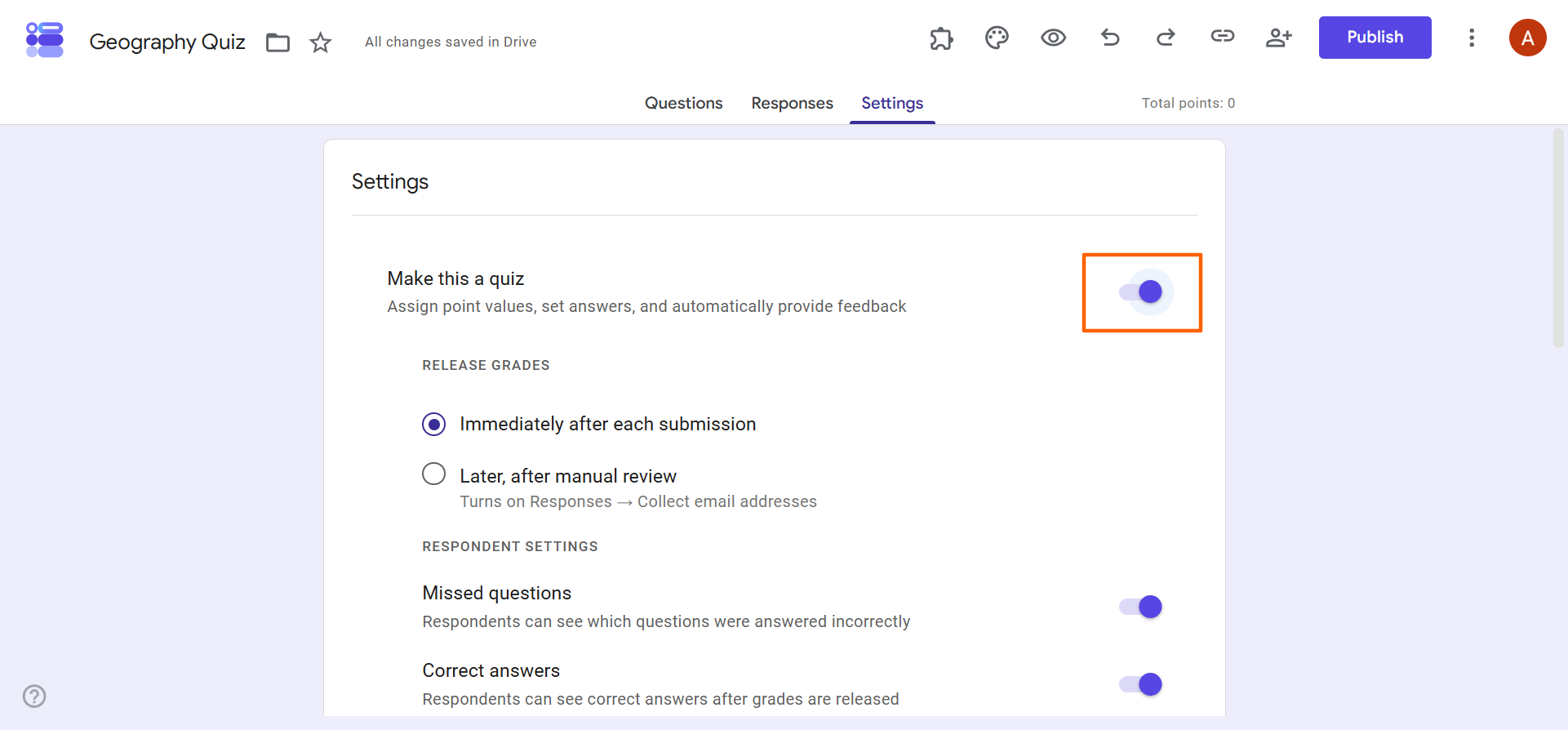
Toggling on this setting creates a new quiz in Google Forms. It also gives you access to grading and points settings. We’ll cover those details later in this article.
2. Add questions to your quiz
Once you’ve set up your Google Forms quiz, it’s time to add questions. You can choose from several Google Forms question types, such as multiple choice and short answer. The question format you choose will depend on the content you want to assess.
Here’s how to add questions in the Google Forms quiz maker:
- In your Google Forms quiz, click Questions.
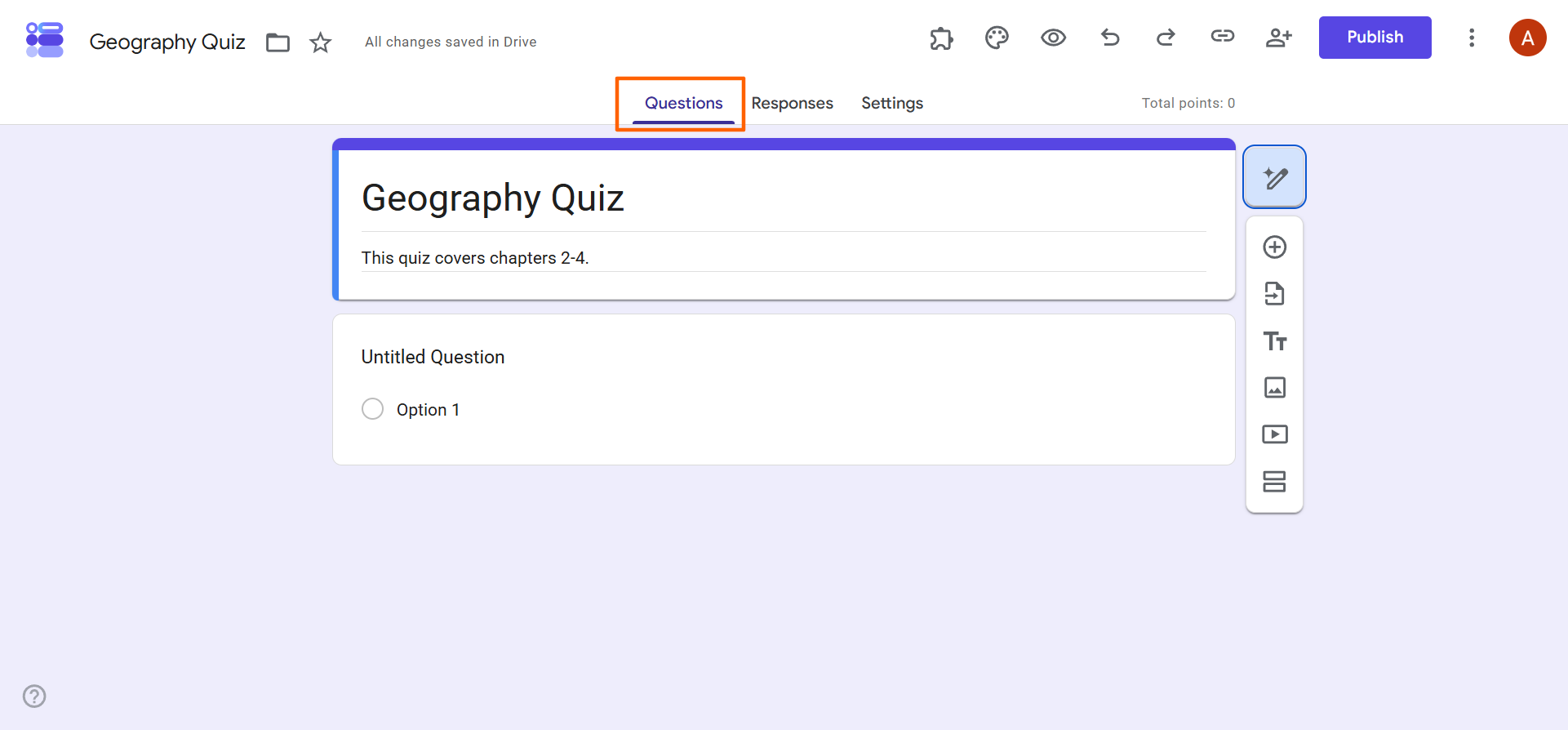
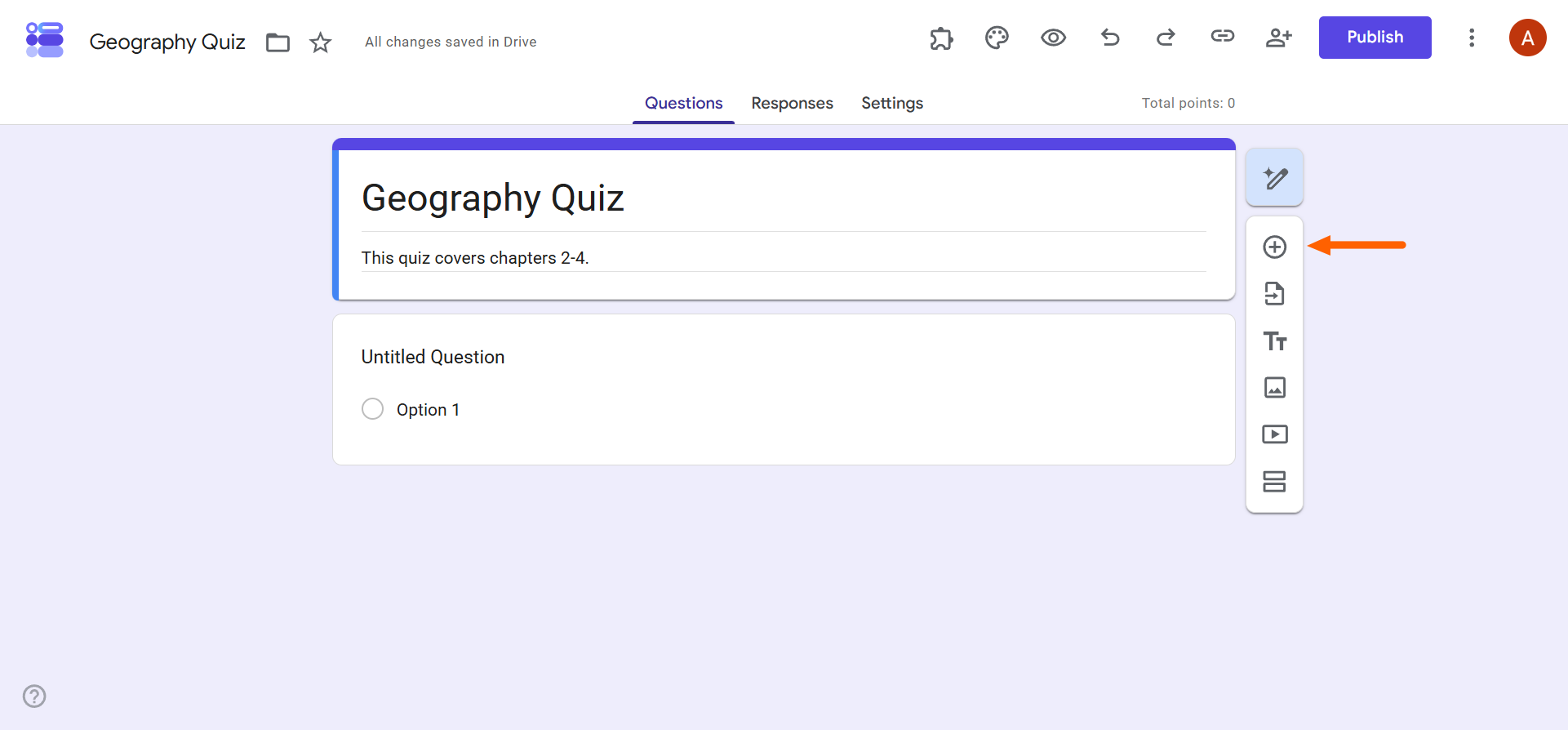
- Click the + icon in the toolbar to add a question.
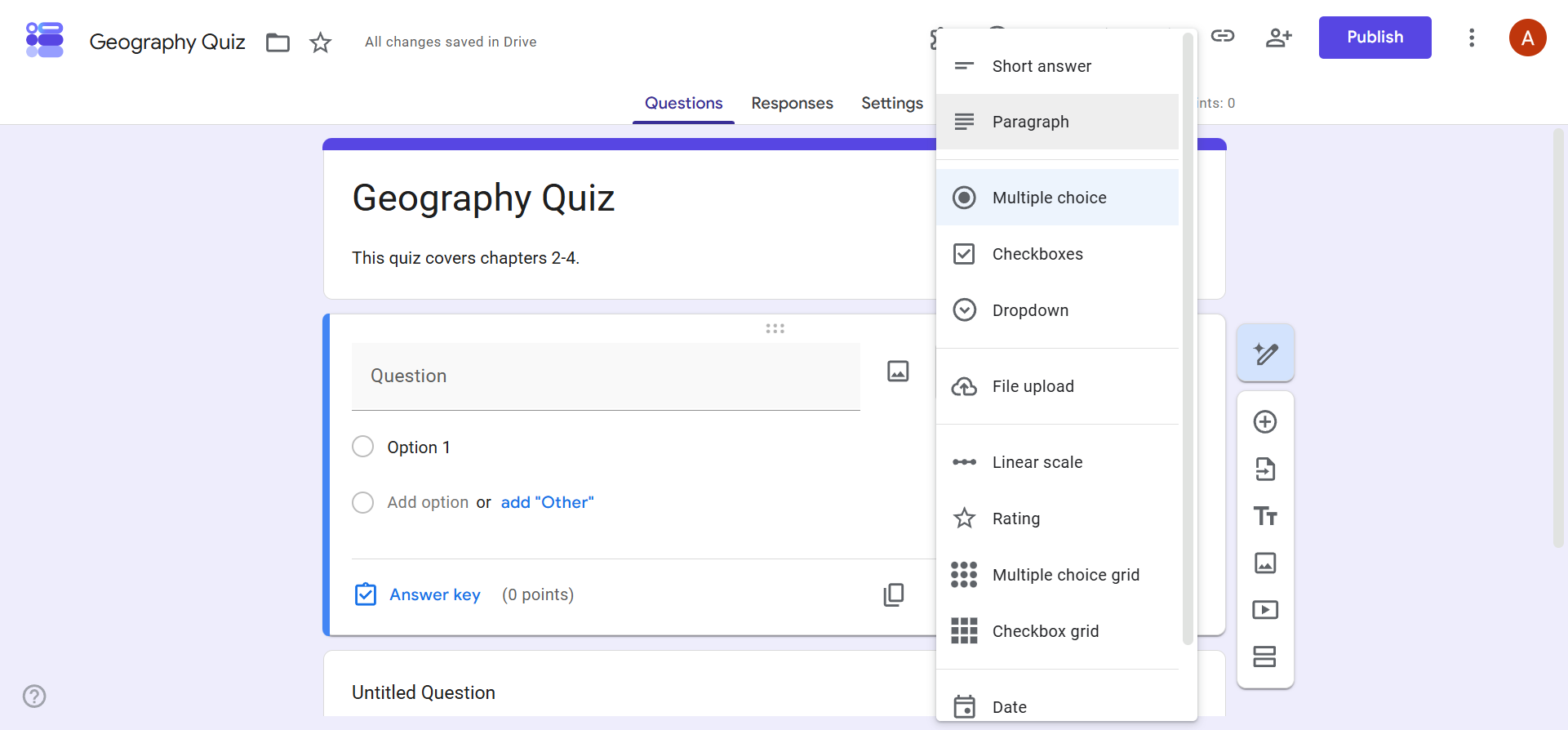
- Select the question type you want to use from the dropdown menu. There are several options for quizzes:
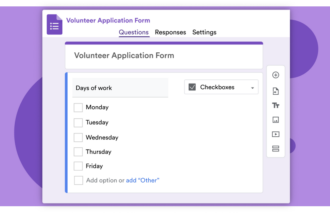
- Multiple Choice: This option is best when you want respondents to select one correct answer from a short list.
- Checkboxes: Use this format when a question has more than one correct answer and respondents should select all that apply.
- Dropdown: This is similar to a multiple-choice question; it lets respondents choose from a longer list of answers while keeping the quiz compact.
- Short Answer: This is best for a brief response, such as a word, number, or short phrase.
- Paragraph: Use this format when you want respondents to offer a longer response with reasoning or evidence.
- Multiple-Choice Grid: Use this when you want respondents to select one answer per row across several related questions or statements.
- Checkbox Grid: This format is best when respondents need to select multiple answers per row across a set of related items.
- Type in your question and answer(s). Continue until you have added all your questions.
Pro Tip
Want to save time on quiz creation? Check out Jotform’s AI Form Builder in the Google Workspace Marketplace. This add-on generates Google Forms questions from a prompt. It can also import content from Google Docs, Google Sheets, Google Slides, Google Drive files, and existing Google Forms. You can also use it to preview questions before importing them into Google Forms.
Create a Google Forms quiz with Gemini
Some Google Forms users can access an even simpler method of quiz creation than typing in questions: using Gemini, Google’s AI assistant tool, to create questions for you.
Offered only through eligible Google Workspace or Google AI plans, Gemini can create one or more questions for your quiz based on natural-language prompts. You can also use Gemini in Google Forms to reference content in Google Drive files, such as Google Docs, Google Slides, and PDFs. Gemini can build the quiz, create select quiz questions, select appropriate quiz settings, assign points to questions, and mark correct answers.
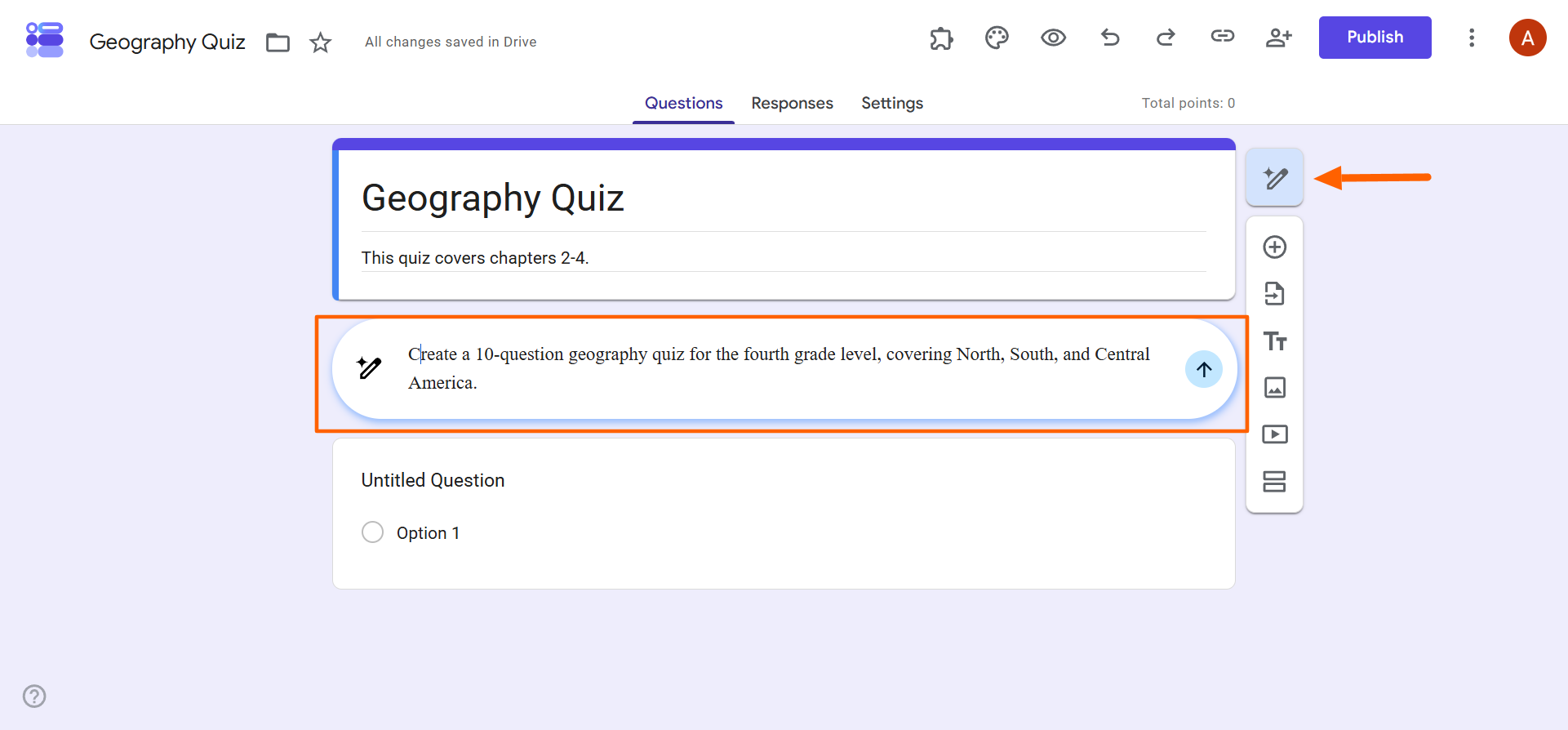
If you have Gemini in your plan, it will be available as the Help Me Write icon on the right side of the quiz. Simply click on it and type in your prompt. For example, “Create a 10-question geography quiz for the fourth-grade level, covering North America, South America, and Central America.” Gemini will provide you with the quiz, which you can edit or revise as needed.
Pro Tip
Don’t have access to Gemini in Google Forms? Use the Jotform AI Form Builder add-on instead. It’s free and easy to install in Google Forms. The add-on creates questions and answers based on your prompts and can access content from your Google Drive.
3. Create an answer key and assign points in Google Forms
When you’re learning how to make a quiz on Google Forms, you have to add an answer key for each question and assign points to each correct answer.
Here’s how to add answers and assign points so you can grade a Google Forms quiz:
- Scroll to the first question in your quiz.
- Click Answer Key.
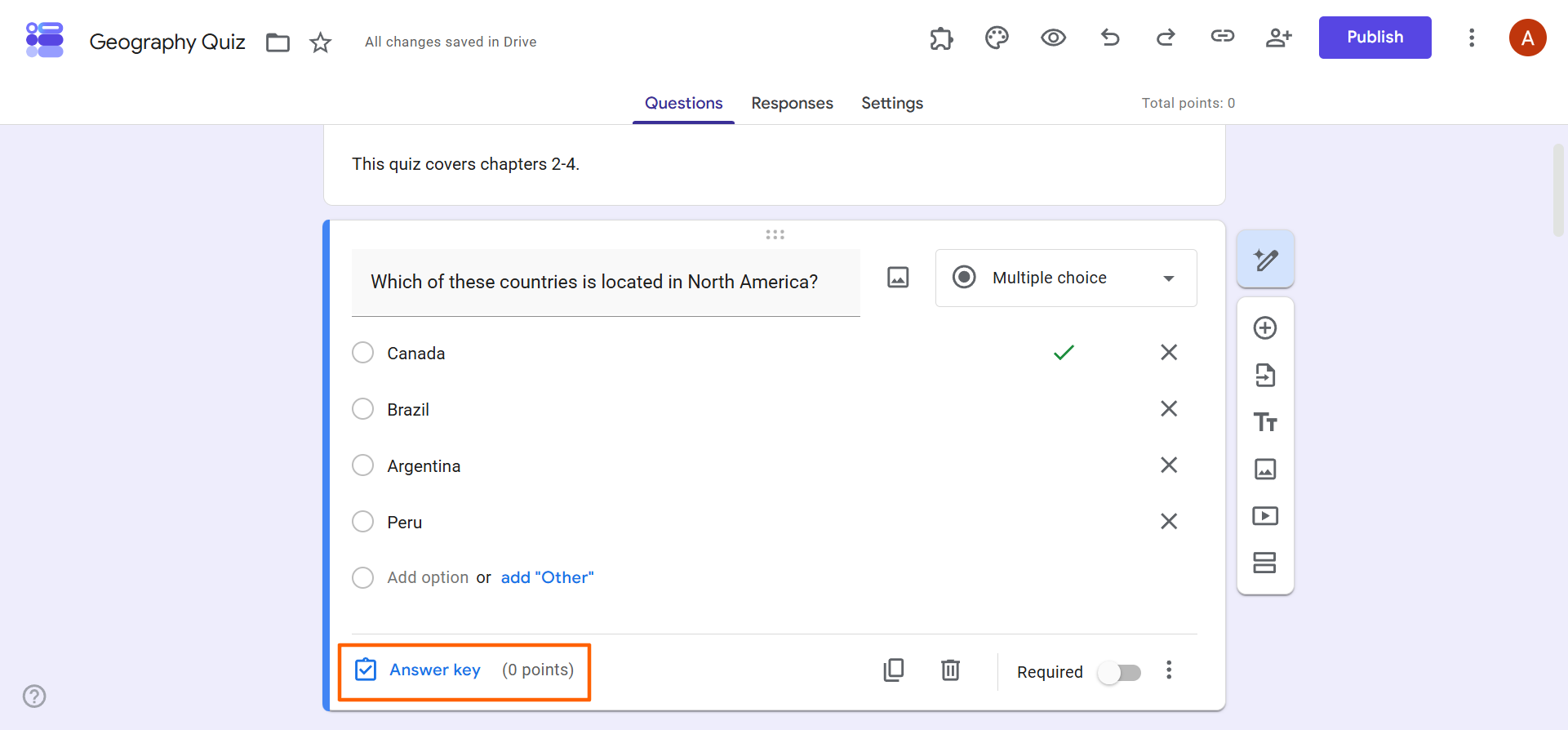
- Select the correct answer for this question and assign a designated number of points in the space provided.
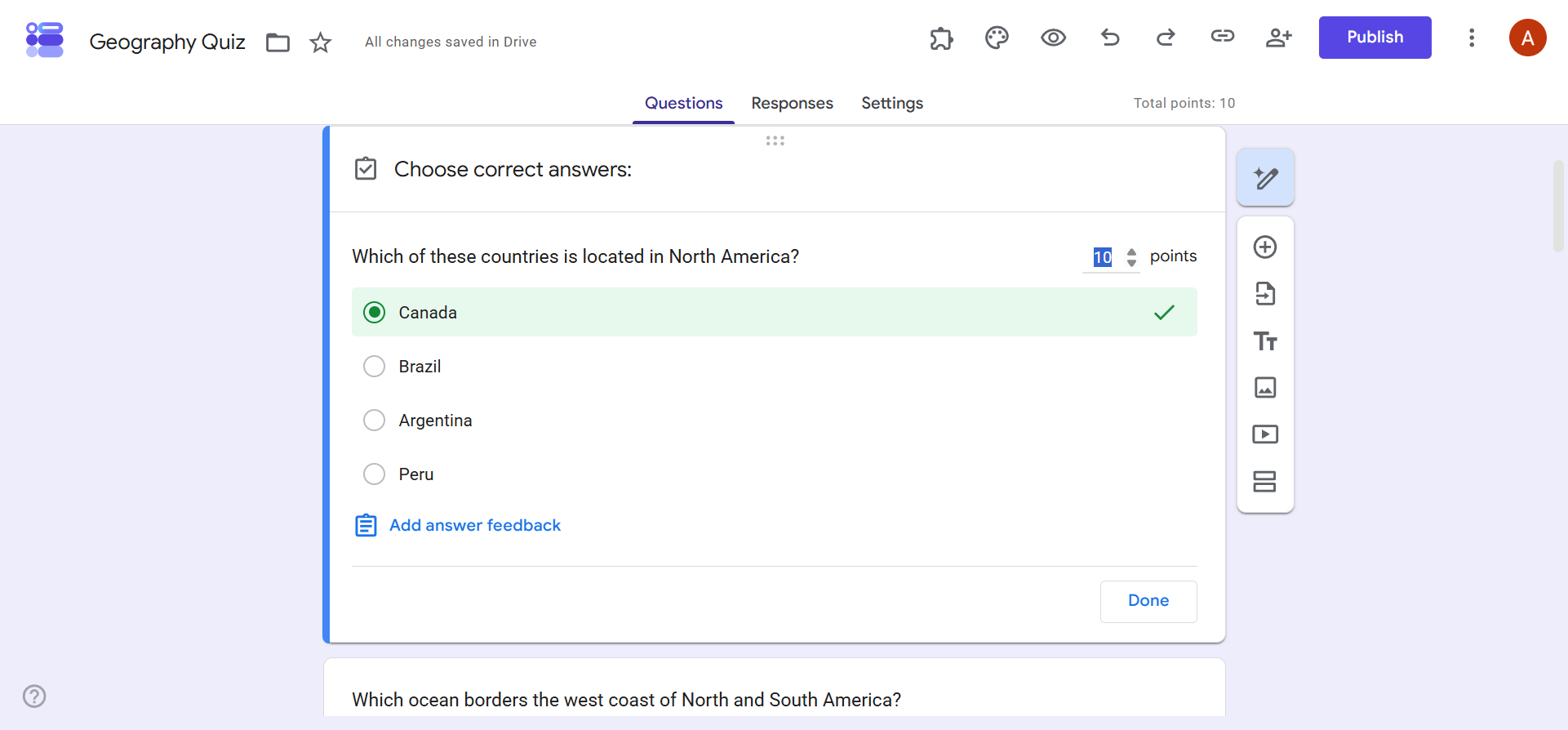
- Add a Google Forms answer key and points for each correct answer to every question in the quiz.
Pro Tip
If you want every question to have the same weight, you don’t need to assign points for each correct answer individually. Instead, go to Settings, and scroll down to Global Quiz Defaults. Set the number of points you want all the questions to have. Google Forms will then automatically assign this point value to all questions.
4. Choose the quiz grading settings
Now that you know how to create a Google Form quiz with scoring, it’s time to select your grading settings. These settings affect the entire quiz and cover grade release options, respondent options, and more.
Here’s how to select the Google Forms quiz grading settings:
- Click Settings.
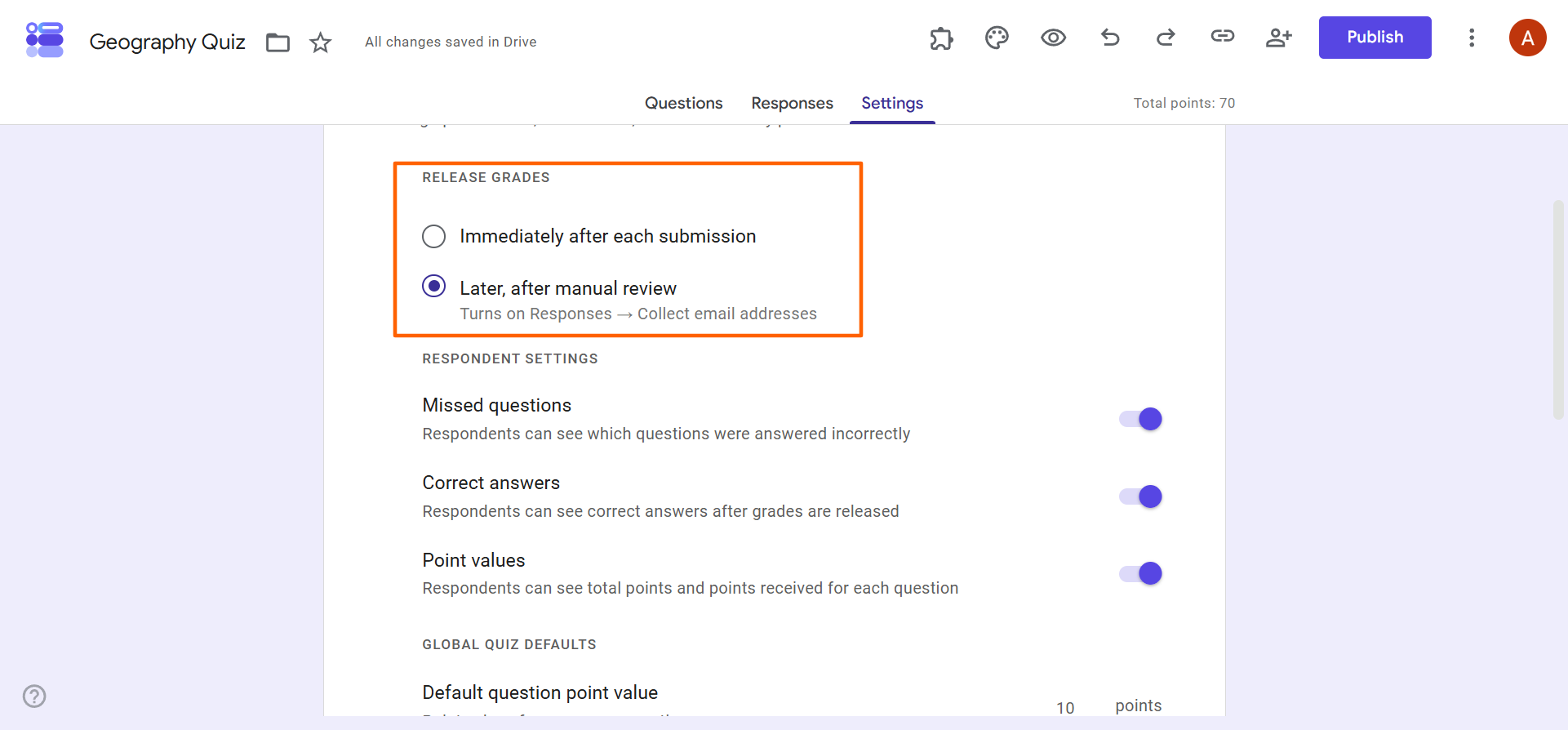
- Under Release Grades, choose from the two options provided:
- Immediately After Each Submission: With this option, you will not have a chance to review the answers or grading.
- Later, After Manual Review: This option lets you double-check the grading before it goes to the student. In this case, Google Forms automatically collects email addresses from respondents.
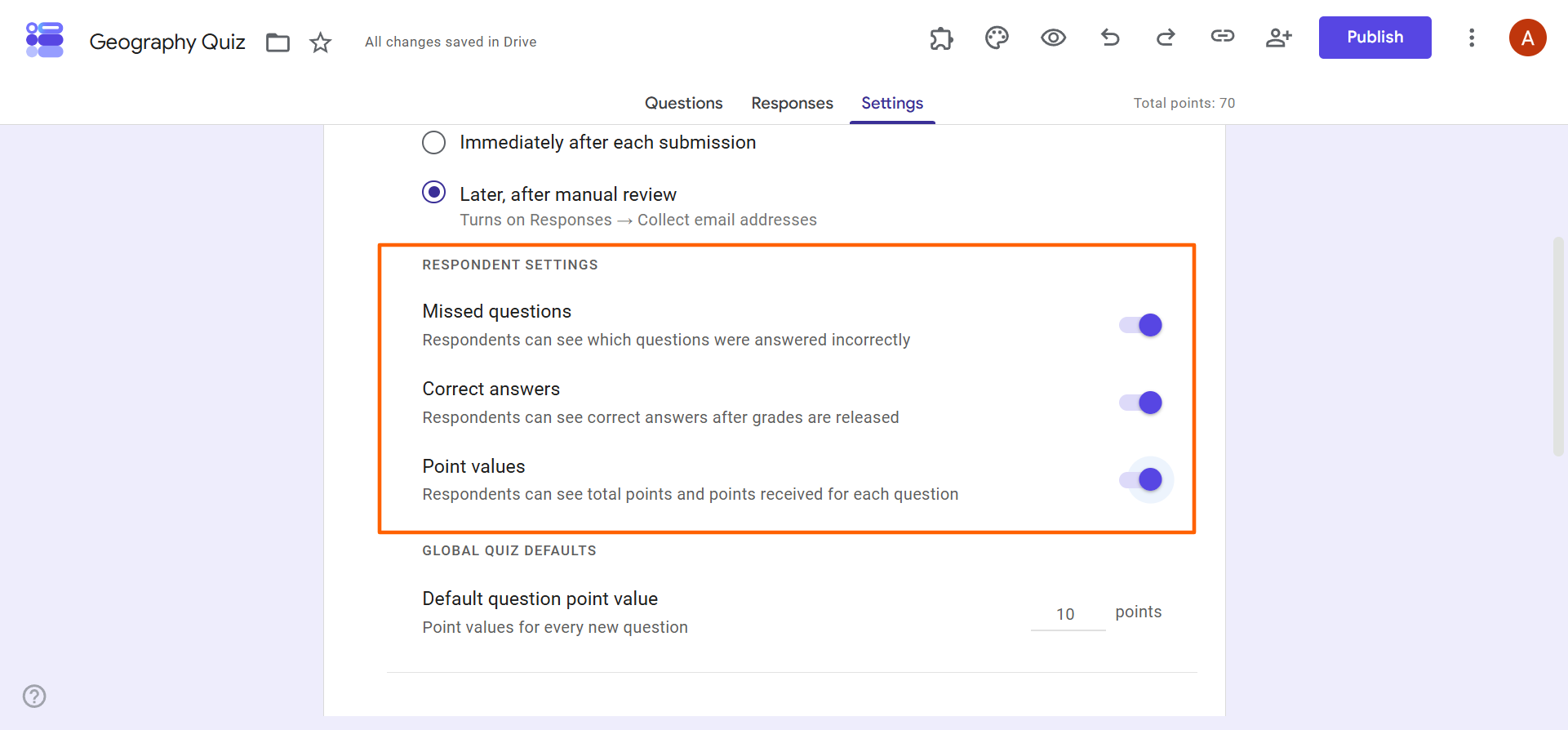
- Under Respondent Settings, toggle on the following as applicable:
- Missed Questions: This shows respondents which questions were answered incorrectly.
- Correct Answers: This shows respondents correct answers (after grades are released).
- Point Values: This shows a respondent’s total points and points received for each question.
5. Configure access and presentation settings
You’ll need to ensure the right people can access the quiz in the right way at the right time. Having these configured correctly avoids a lot of hassle during quiz time.
Here’s how to specify the right access and presentation settings for your Google Forms quiz:
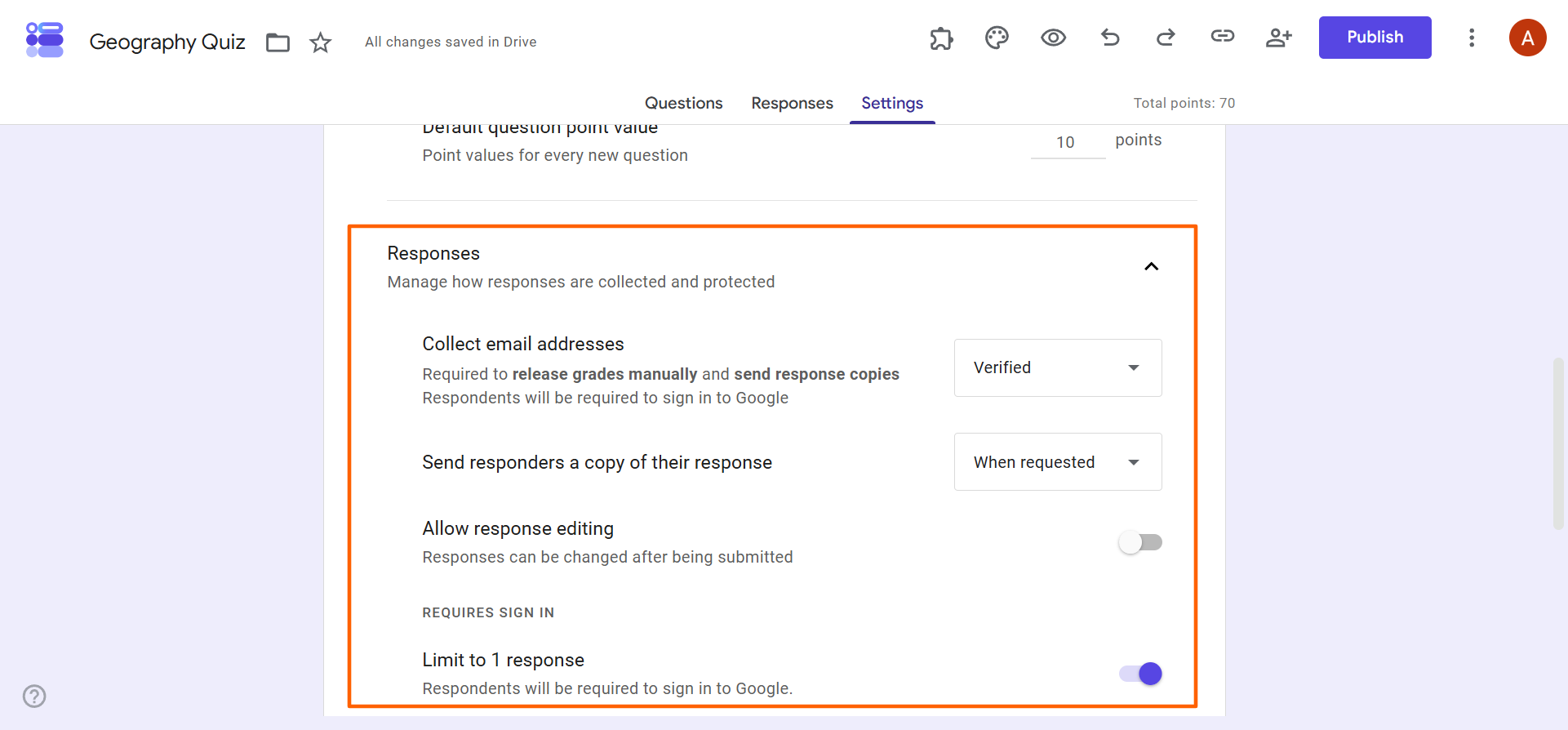
- Under Settings, scroll down to and click on Responses.
- Select the following settings based on your needs:
- Collect Email Addresses: This is a best practice, especially if you want to prevent cheating on Google Forms.
- Send Responders a Copy of Their Response: This setting sends quiz takers an email that shows their answers.
- Allow Response Editing: You won’t need to toggle this setting on for most quizzes, because students often aren’t given the ability to change their answers.
- Limit to 1 Response: You’ll want to toggle this setting on so students can’t submit more than one quiz.
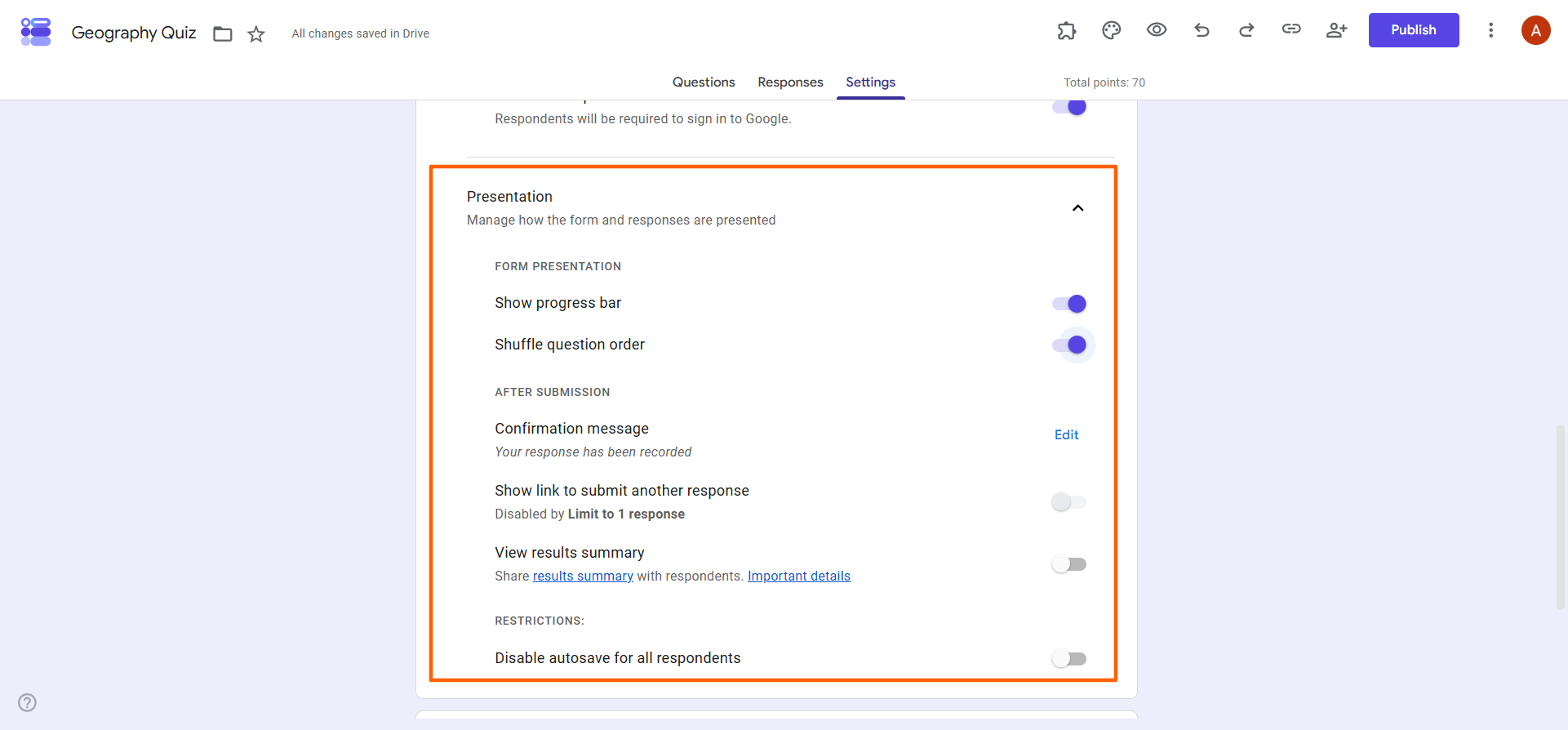
- Scroll down and click on Presentation.
- Select the following settings as you need:
- Show Progress Bar: Toggle this setting on so students can see how far along they are in the quiz.
- Shuffle Question Order: This setting reorders the questions for each student, which is another way to prevent cheating.
- Confirmation Message: You can provide a message to students saying you’ve received their quiz.
- Share Link to Submit Another Response: This field is typically not used for quizzes.
- View Results Summary: This lets you share the quiz results with respondents.
- Disable Autosave for All Respondents: Toggle this setting on if you want students to manually save their answers.
6. Customize and preview the quiz
Take a few minutes to customize the look of the quiz. You can align it with your educational institution’s colors or add a header image relevant to the quiz’s subject.
Here’s how to customize the quiz and preview it:
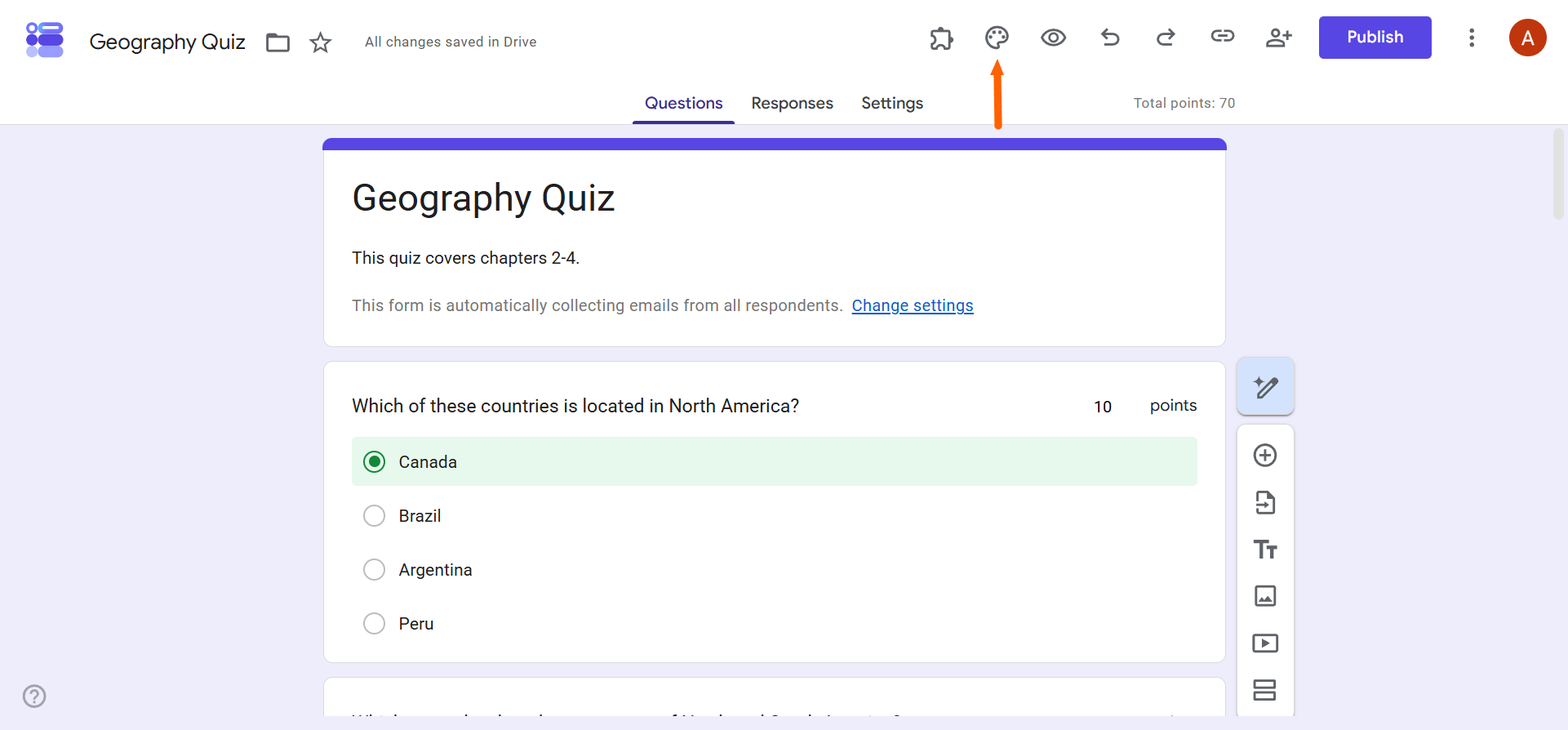
- Click Questions.
- Click the Paint Palette icon to customize the theme.
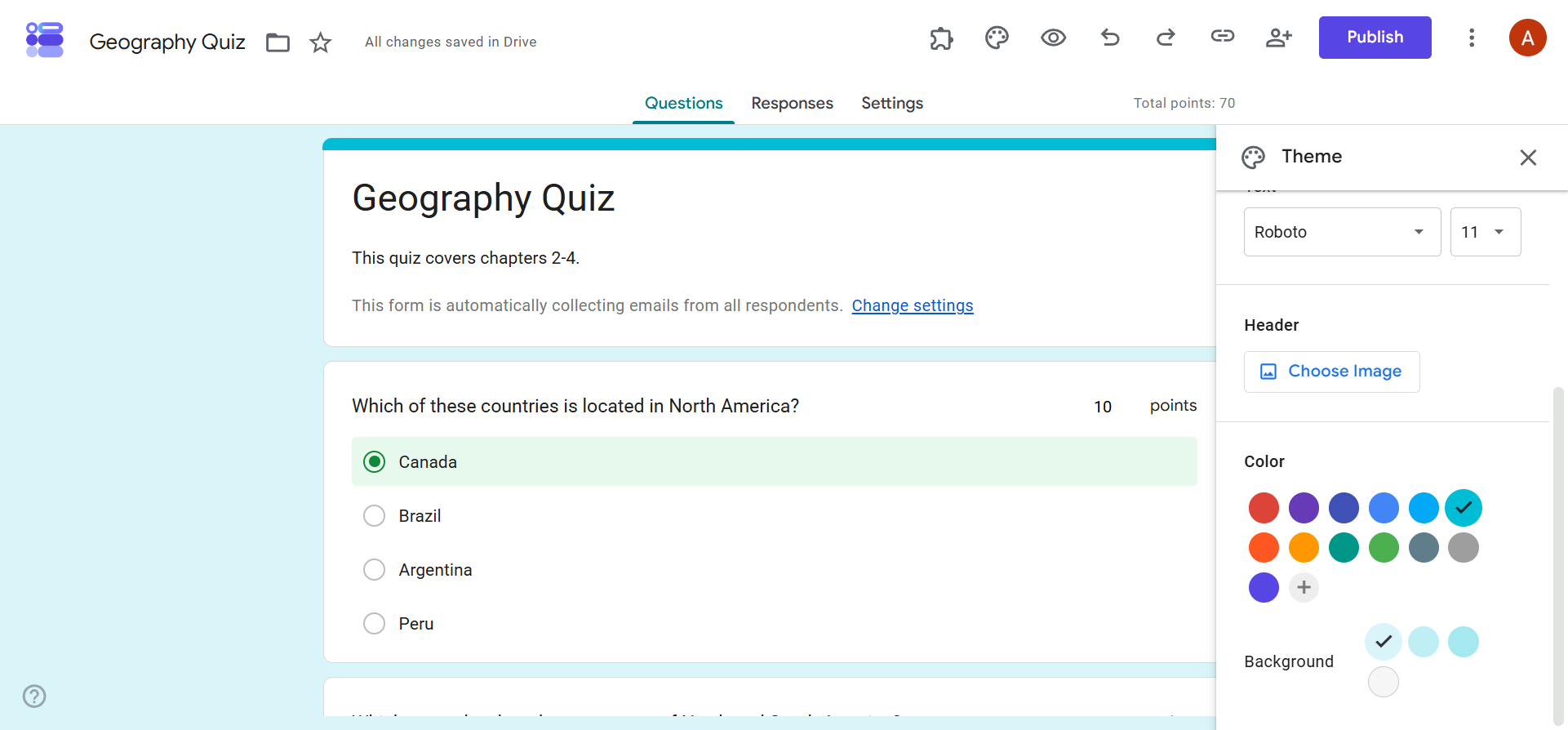
- Set the following customization options:
- Text Style: Specify the font and font size for the header, questions, and text.
- Header: Add a relevant image to the top of the quiz.
- Color: Choose a background color for the quiz.
- Click the preview Eye Icon.
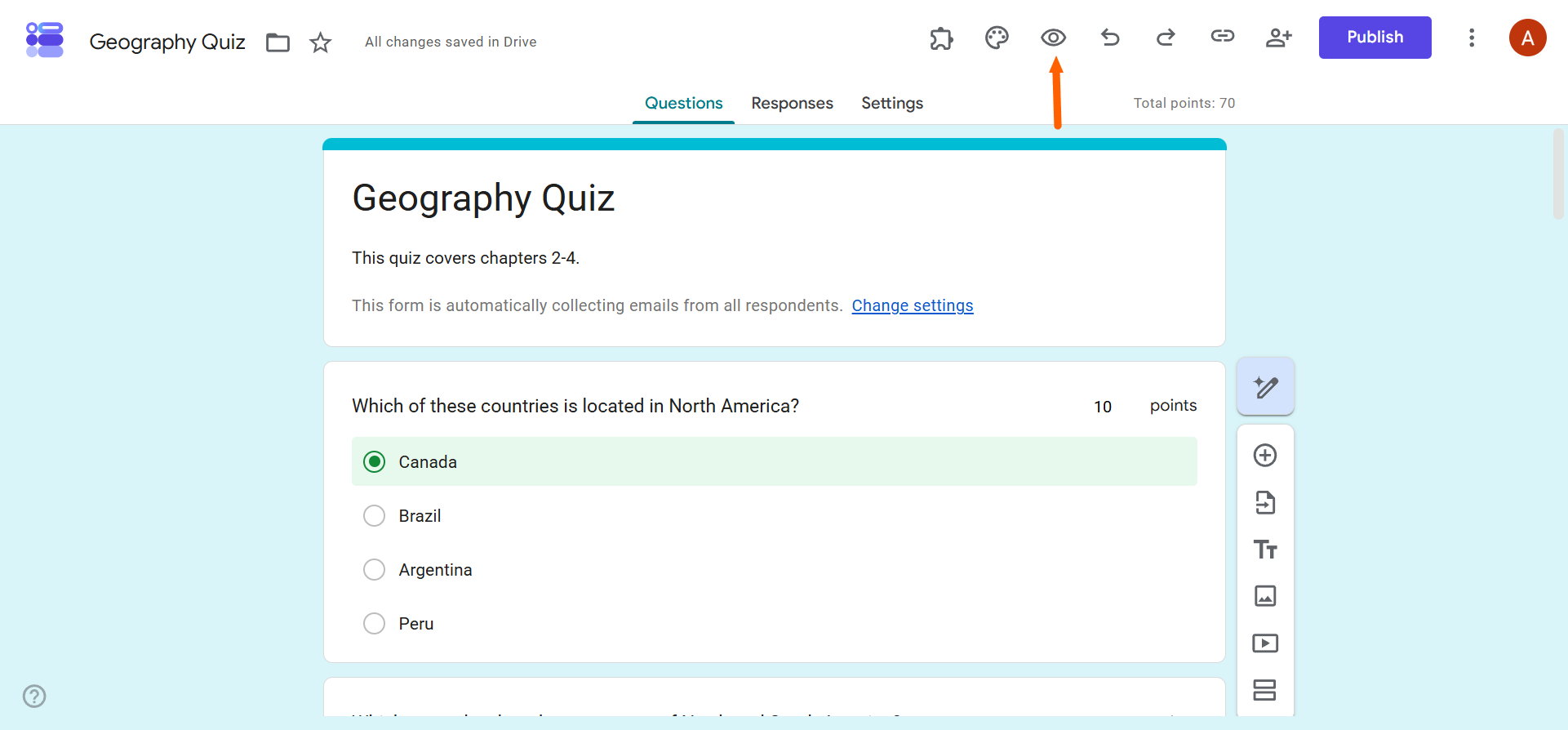
- Review the details and make sure everything looks correct. Make any edits as needed.
7. Publish and share the Google Forms quiz
You’re now ready to publish and share the quiz you created in Google Forms with your students.
Here’s how to publish and share your Google Forms quiz:
- Click Publish at the top.
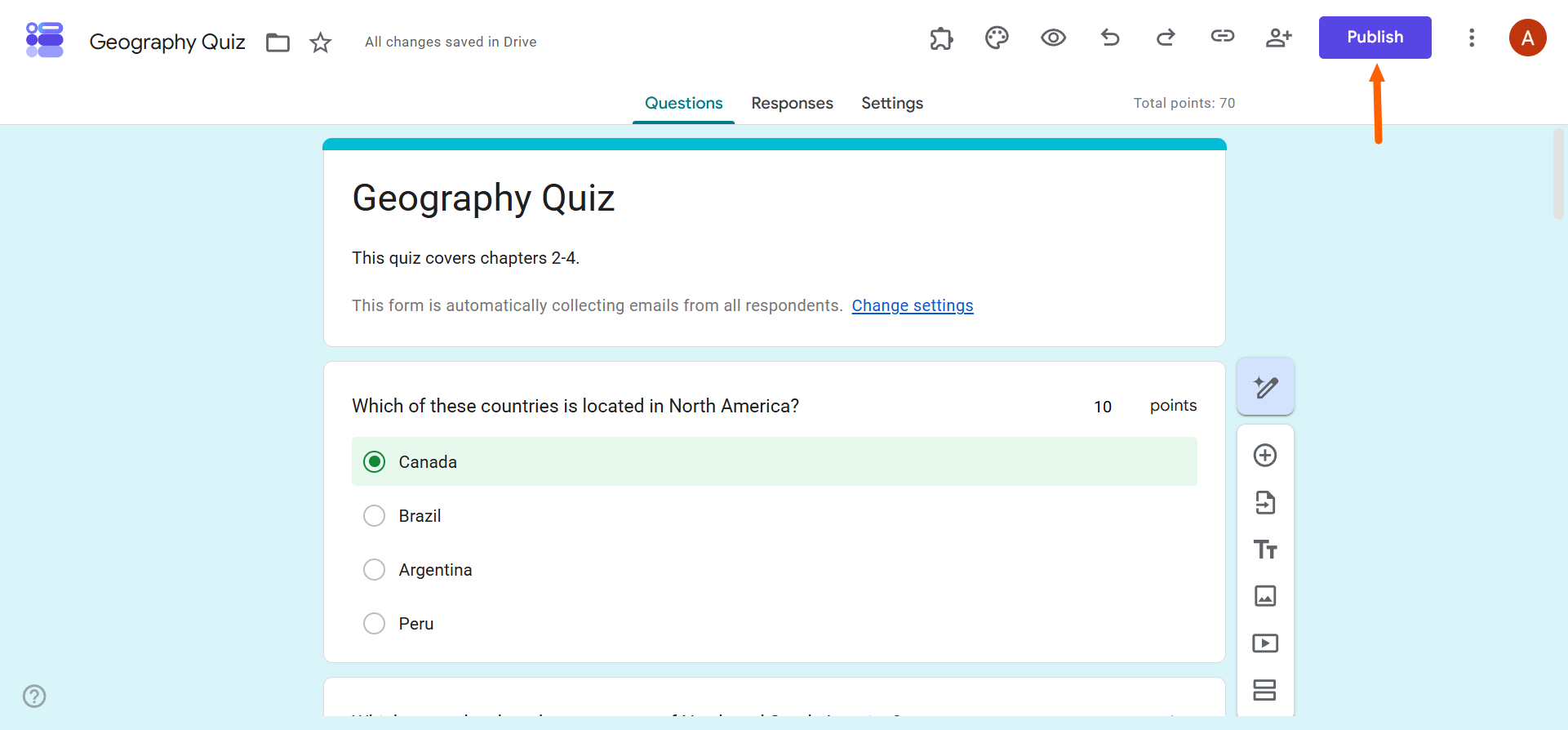
- Click Manage.
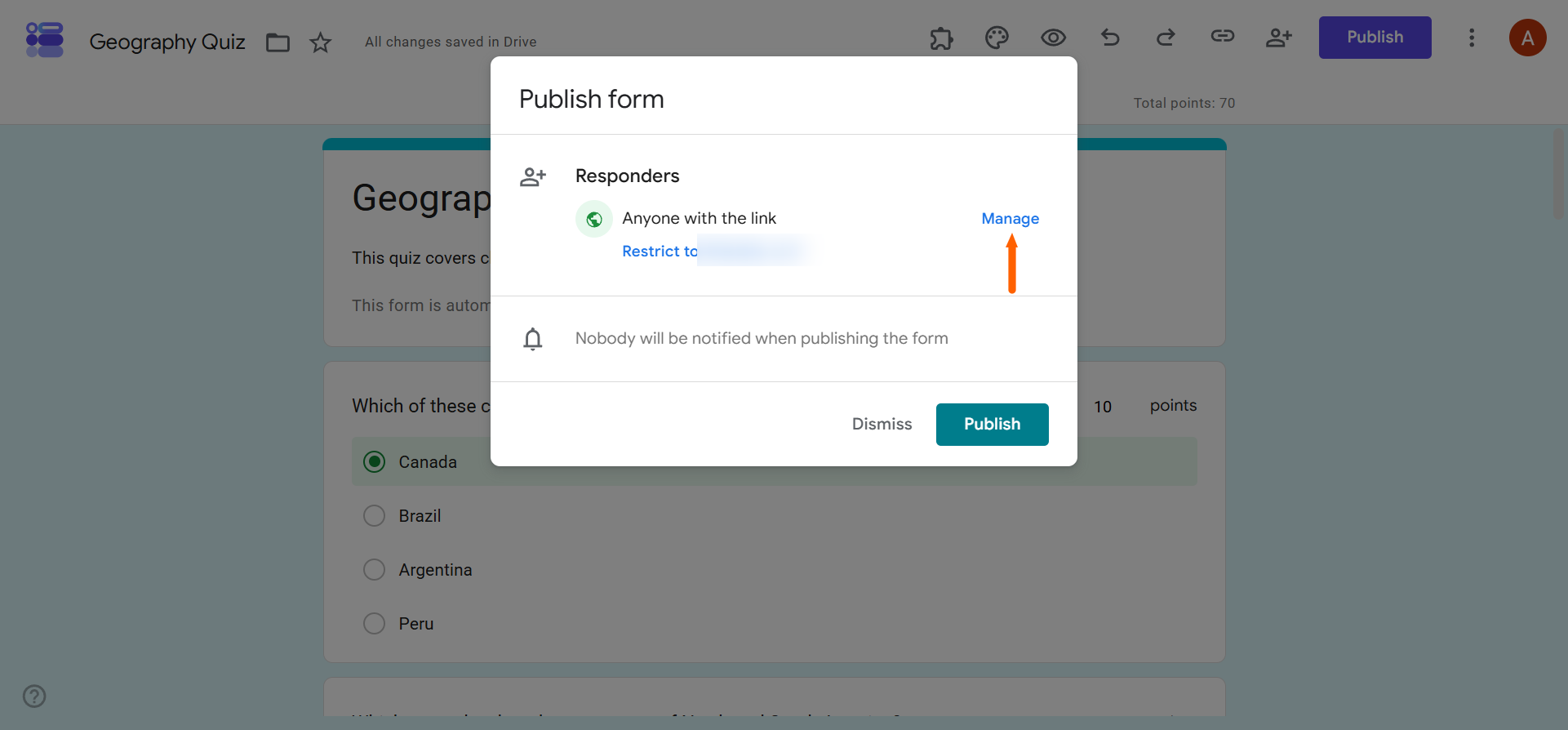
- Select the General Access setting to ensure your students will be able to access the quiz. Click Done.
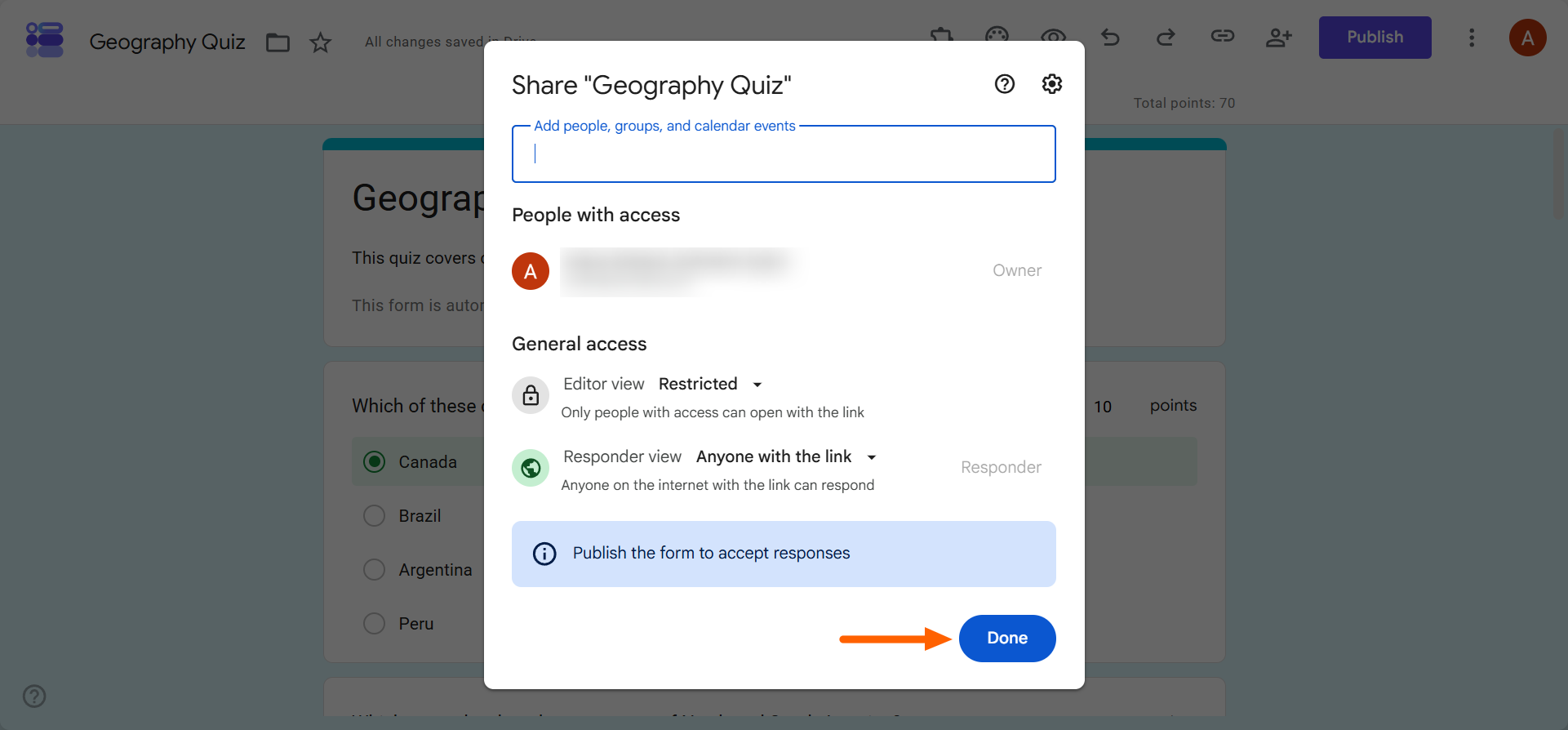
- Click Publish.
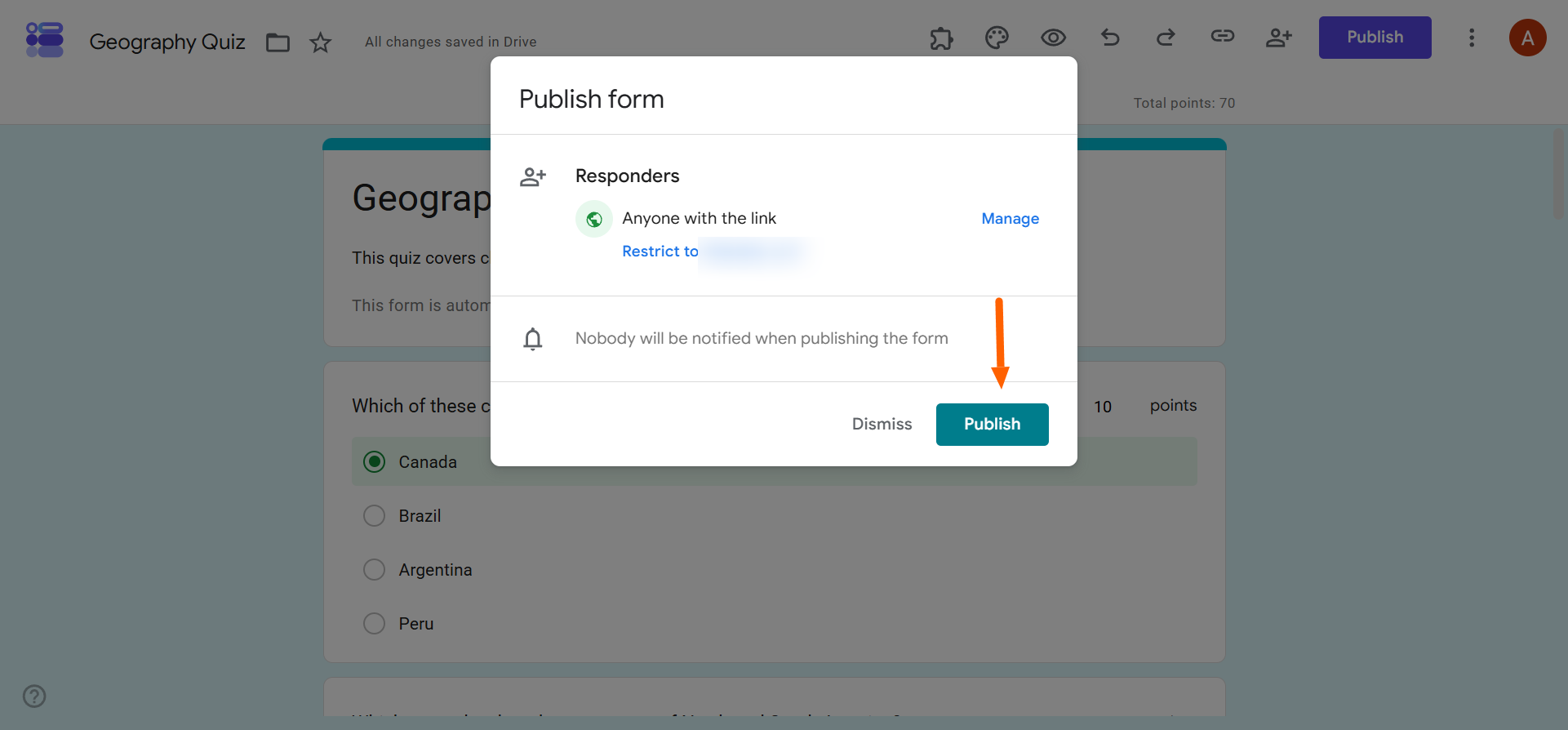
Google Forms will give you the link for the quiz. Share the link with your students via email, a website, or social media.
8. Review responses, grade answers, and release scores
Once the responses start coming in, you can view each student’s work and the automatic grading from Google Forms.
The grades will be released either immediately or after your review, depending on the setting you selected in step 4.
Here’s how to check the Google Forms quiz responses:
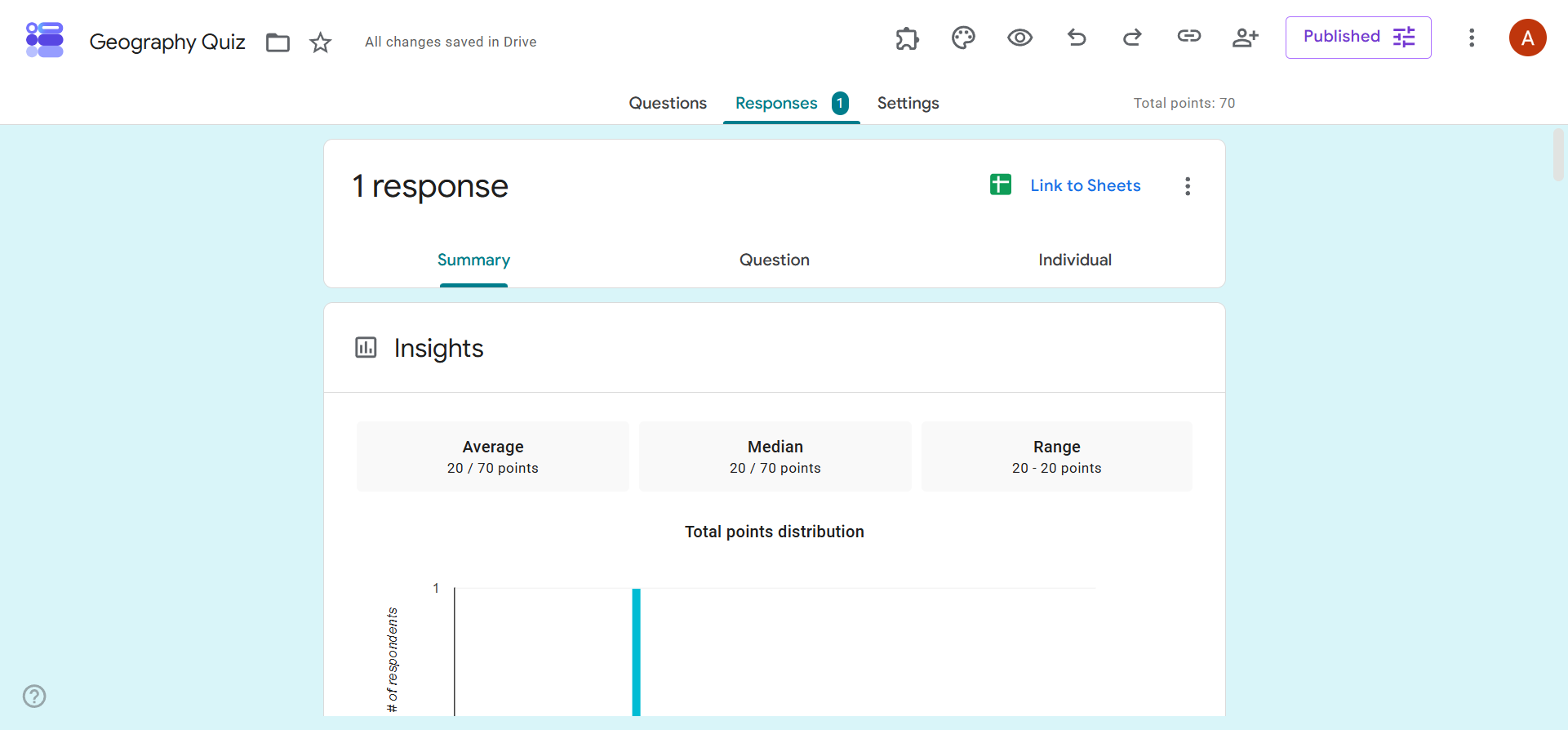
- Click Responses.
- Google Forms organizes incoming responses in three different views:
- Summary: This shows all the responses for each student. You can review overall performance, score ranges, and frequently missed questions. It’s a good place to spot trends and anomalies.
- Question: See the responses to each question, one at a time.
- Individual: Review each student’s quiz submission.
Google Forms quiz tips
We’ve covered the mechanics of how to make a Google Form a quiz, but there’s more to consider if you want the experience to go smoothly for everyone involved. Follow these best practices to ensure you get the information you need about your students’ knowledge.
- Use closed-ended question formats to enable automatic grading: Closed-ended formats such as multiple choice work best for Google Forms’ automatic grading. While you can also use open-ended question formats (such as short answer) in automatic grading, you run the risk of introducing errors to the process.
- Review every answer key and point value: Double-check every answer key and point value before you hit publish to ensure they are correct. This will save you time and frustration after the quiz has been completed.
- Test the published quiz before sharing it: Try the quiz yourself first to make sure there aren’t any issues with questions and answers, point values, or access.
- Assign point values strategically: Decide how much different questions are worth based on their difficulty level or importance to the quiz.
- Use sections and branching carefully: Break longer quizzes into sections to make them more engaging. Use branching only when necessary. If you branch quizzes, you may not be able to assess all students for the same knowledge.
- Plan for written answers that require manual grading: With open-ended question formats such as short answer and paragraph, consider all the possible correct answers a student can have.
What Google Forms quizzes cannot do
Google Forms provides basic functionality for creating quizzes, which means you may not be able to do everything you want to do. For example, Google Forms has limited adaptive question paths when using branching, making it more restrictive than advanced form builders and dedicated quiz tools. The reporting and analytics Google Forms provides is also limiting. The Responses tab offers useful summaries of answers, but you’ll have to export responses to Google Sheets or another platform to get more advanced analytics.
Also, if you want to have detailed control of the quiz’s design, the options in Google Forms are not enough; you can change only the font, header image, and background color. Similarly, you cannot customize the quiz results pages.


Go beyond basic Google Forms quizzes: Use Jotform instead
If you’re looking for a more flexible quiz maker that offers advanced functionality, look no further than Jotform. Jotform is ideal for creating quizzes using AI tools, applying custom branding, developing custom question paths, and much more.
Jotform offers multiple ways to create quizzes with ease:
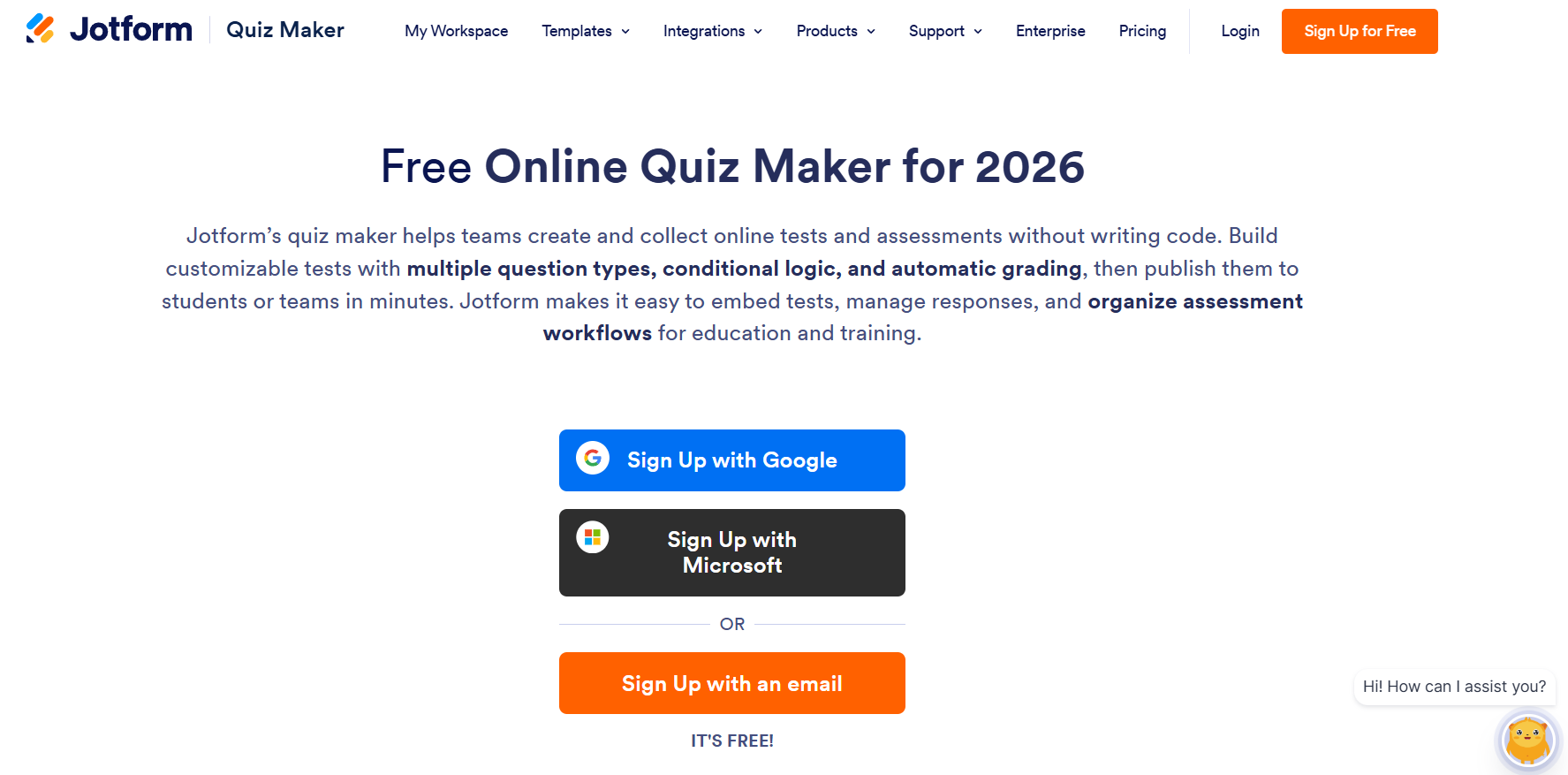
- Jotform Quiz Maker: This free quiz tool has automatic grading, conditional logic for custom question paths, and quiz reports. It also offers custom fonts and colors, website embedding, and ready-made templates. You can also customize how the quiz results are displayed or emailed to participants after submission.
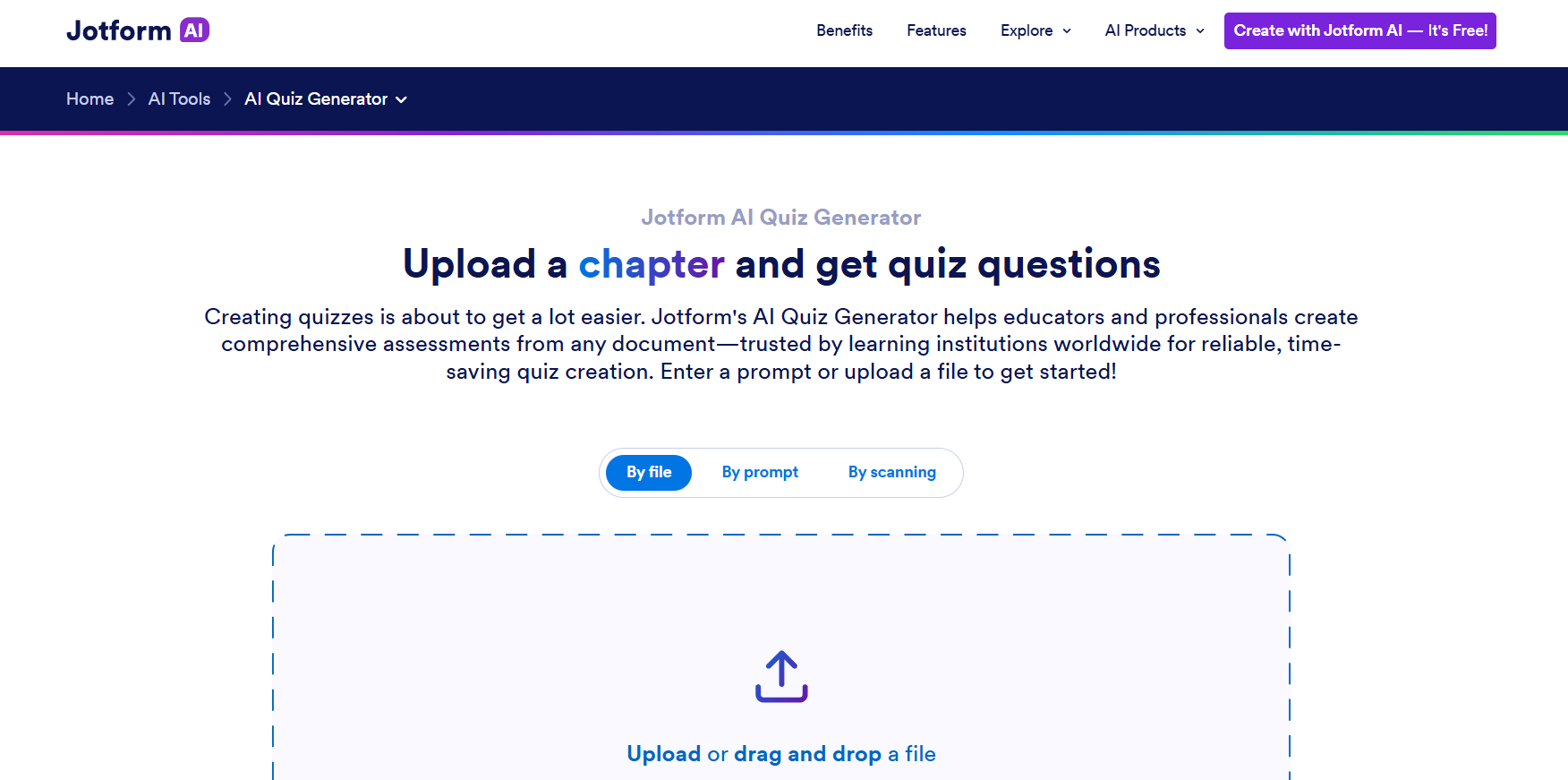
- AI Quiz Generator: Create a quiz in seconds with a prompt. The tool can also build a quiz from an uploaded document, such as a PDF, PowerPoint, Word, or text file. Just specify the number of questions, types of question formats, language, and difficulty you’re looking for, and AI does the rest.
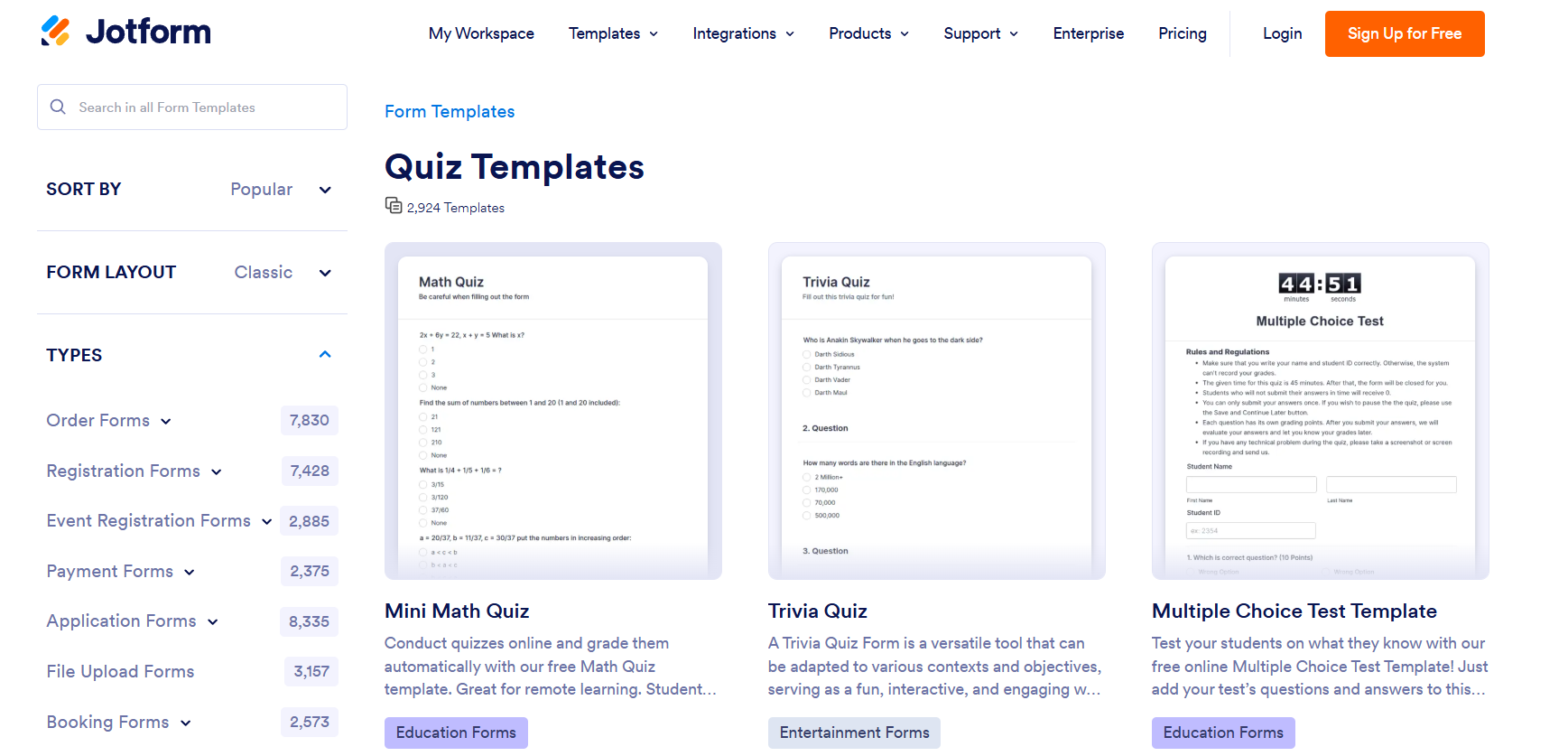
- Quiz templates: You don’t have to create quizzes from scratch. Just browse the thousands of quiz templates, choose the one you like, and customize it based on your needs in the Jotform Form Builder.
Compared with Google Forms, which offers only basic features for straightforward quizzes, Jotform enables you to connect your quizzes to broader education or training workflows. You have full control over how quizzes are generated, designed, scored, displayed, and connected to other tools.
With Jotform, you have access to
- Intelligent AI tools that can create quizzes or questions based on a prompt or uploaded file
- Conditional logic for different quiz paths
- Branded quiz templates
- Automatic grading
- Customizable results pages
- Website embed options
- Integrations with other education tools
- Detailed reports and results insights
- Automatic follow-up workflows
How much does Jotform cost?
Jotform offers advanced quiz functionality for free with its Starter plan, which can help you meet basic quiz and assessment requirements. If you’re a teacher or part of an educational institution, take advantage of Jotform’s education pricing, which provides a 50 percent discount on all paid plans. This means you can access the Bronze plan for only $17 per month when billed annually, instead of paying $34 per month. As an educator, you also have access to over 7,000 education form templates for quizzes, exams, evaluations, registrations, assignments, and other school workflows.
Ready to get started? Check out the Jotform AI Quiz Generator or migrate your Google Form to Jotform in seconds to create your first quiz with Jotform today.
This article is for teachers, tutors, school administrators, corporate trainers, HR and learning and development teams, course creators, and other professionals who want to create an online quiz, automatically score objective questions, and review participant results.















































































Send Comment:
1 Comment:
August 4, 2023
Thank you for assisting me through this Google form